From Code to Colleagues: How WorkIQ Turns GitHub Copilot Into a Workplace-Aware Assistant
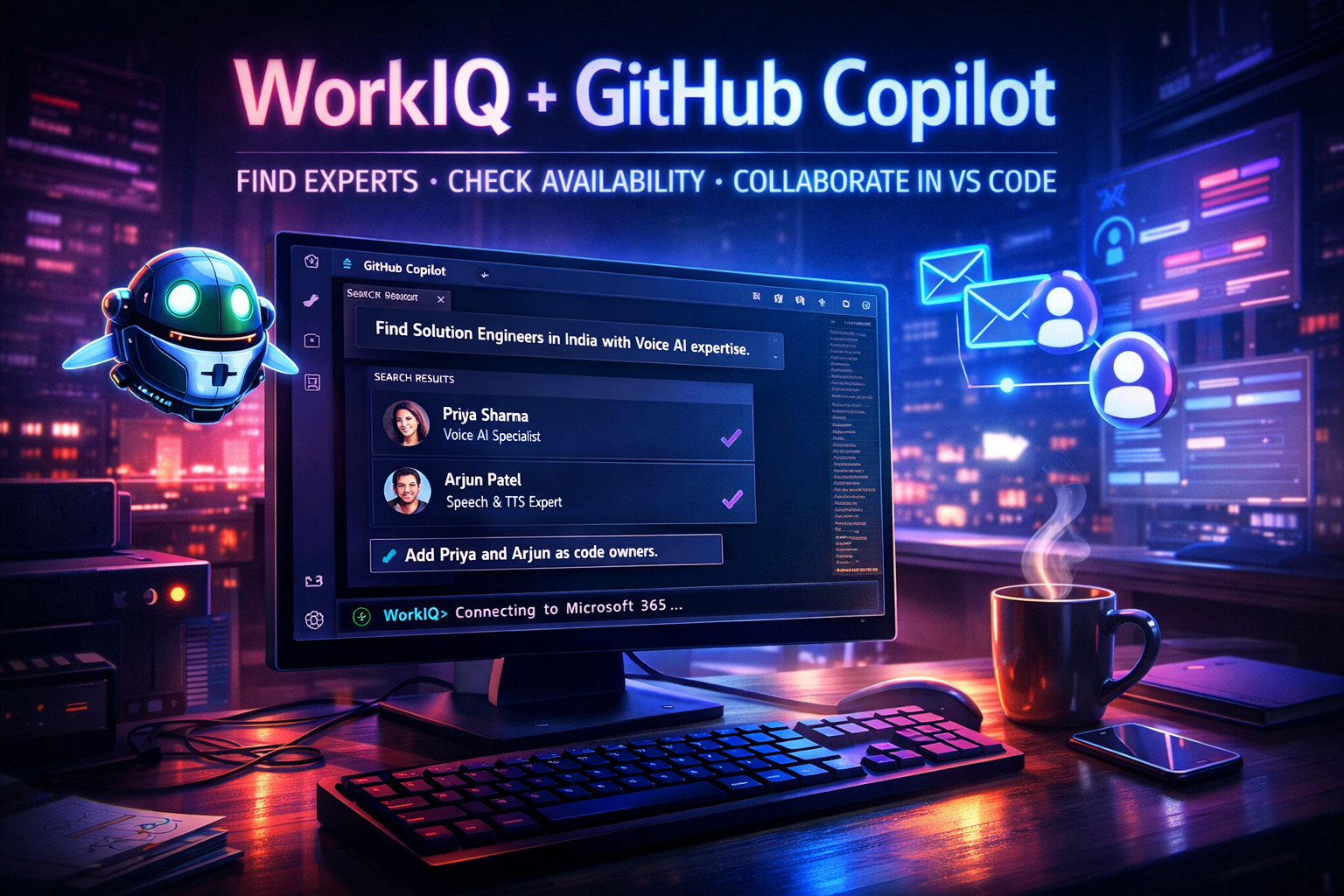
Two Worlds, One Conversation
For years, Modern Work and Developer Tools have lived at opposite ends of the technology spectrum. On one side: Outlook, Teams, calendars, org charts — the fabric of how organizations communicate and collaborate. On the other: IDEs, terminals, pull requests, code reviews — the forge where software gets built.
These two worlds serve fundamentally different personas, solve fundamentally different problems, and have evolved on entirely separate trajectories. If you needed workplace context while coding — who has the right expertise, when they’re available, what was decided in a meeting — you had to leave your developer environment, switch into the Modern Work stack, gather what you needed, and carry it back manually.
WorkIQ collapses that divide. For the first time, your AI coding assistant can reach across the aisle into your organizational graph, your calendar, your meeting history, and your people network — and bring that intelligence directly into your developer workflow. It’s not just a productivity shortcut. It’s a fundamentally new interaction model: the workplace and the codebase, reasoning together in a single conversation.
That’s what makes this demo remarkable — not any one feature, but the seamless convergence of two ecosystems that have never talked to each other this way before.
The Problem: Context Switching Kills Flow
You’re deep in code. You need a subject matter expert to review your Voice AI project. So you alt-tab to Outlook to search for people. Then to Teams to check org charts. Then back to Outlook to look at calendars. Then to GitHub to set up reviewers. By the time you’re done, your flow state is gone.
What if your coding assistant could do all of that for you — right where you’re already working?
Enter Microsoft WorkIQ
Microsoft WorkIQ (currently in Public Preview) is a CLI and Model Context Protocol (MCP) server that connects AI assistants to your Microsoft 365 Copilot data. It enables GitHub Copilot in VS Code to access and reason over your workplace information — emails, meetings, documents, Teams messages, and people — using natural language.
WorkIQ doesn’t store any of your data. It retrieves information on-demand, respects your existing permissions, and inherits enterprise-grade security from Microsoft 365 Copilot. Your admin retains full visibility and control.
The Demo: A Real Collaboration Workflow
🎥 Video Demo
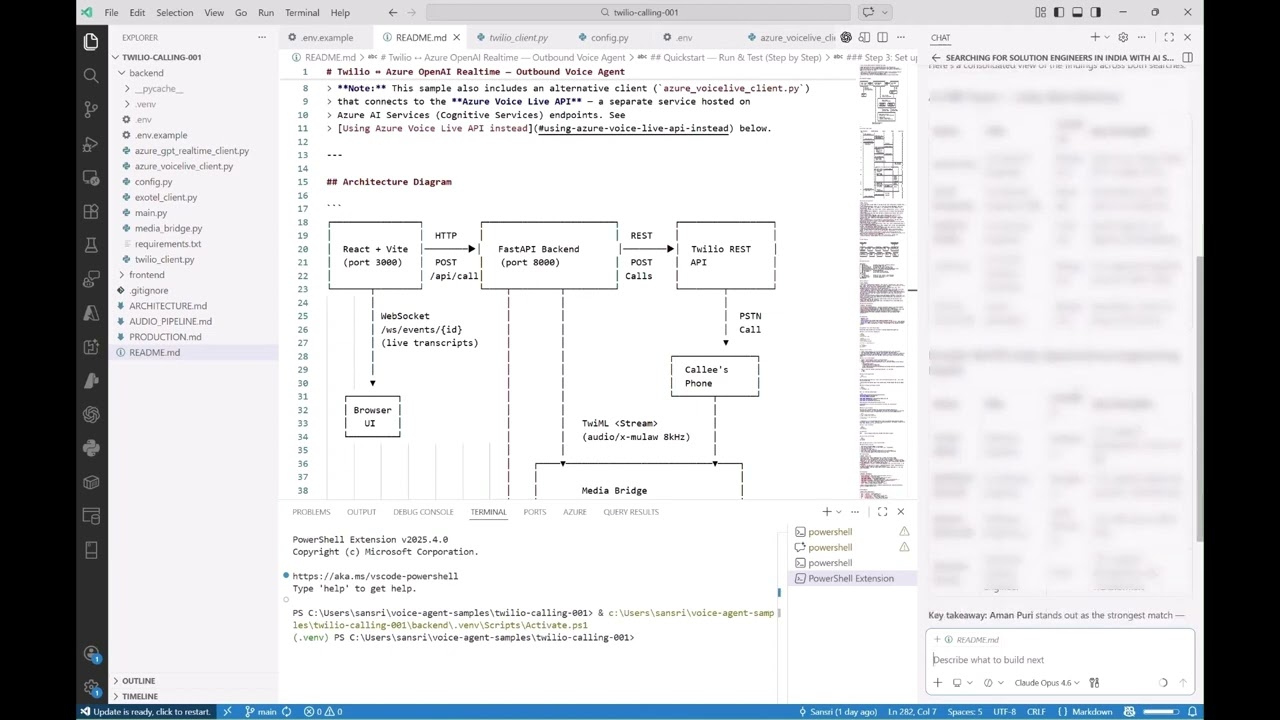
Click the image above to watch the WorkIQ demo in action
I recorded a walkthrough that demonstrates WorkIQ’s power in a real scenario: I’m building a Voice AI application and need to find the right technical experts to collaborate with — all from within VS Code.
Here’s what happens in a single, continuous conversation with GitHub Copilot:
Step 1: Finding the Right Experts
I asked Copilot to find Solution Engineers based in India with deep technical skills in Voice, Generative AI, Speech APIs, and TTS.
WorkIQ searched across Microsoft 365 people profiles, inferred skills, organizational data, emails, and meeting context. It returned a curated list of matches with:
- Names and titles
- Locations
- Org alignment
- Evidence of relevant skills — not just listed skills, but signals from real work: meeting topics, project involvement, customer engagements
The top results included Solution Engineers actively working on Voice Live deployments, Azure OpenAI integrations, and Speech/TTS implementations — exactly the expertise I needed.
Step 2: Checking Calendar Availability
Once I identified two strong candidates — with TTS/Speech depth and Voice bots — I asked Copilot to check their availability for the current and following week.
WorkIQ pulled calendar data and returned specific open time slots, flagged busy blocks (including a customer workshop), and even suggested the best overlapping windows for a joint meeting. No Outlook tab required.
Step 3: Setting Up Code Collaboration
Finally, I asked Copilot to add both colleagues as code owners on the GitHub repository — closing the loop from discovery to collaboration setup, all in one conversation thread.
Why This Matters
This isn’t a contrived demo. This is the kind of workflow that happens dozens of times a week for any engineer working on a team. The traditional flow looks like this:
- Think of who might help → Search in Teams/Outlook → Browse org charts
- Find someone → Open their calendar → Find overlapping slots
- Set up collaboration → Switch to GitHub → Configure reviewers
With WorkIQ + GitHub Copilot, the flow becomes:
- Ask → Get experts with evidence of relevant skills
- Ask → Get calendar availability with open slots
- Ask → Set up code collaboration
Three natural language requests. One conversation. Zero context switches.
How to Try It Yourself
WorkIQ is available in Public Preview. To set it up as an MCP server in VS Code:
Quick Install
Use the one-click install links:
Manual Setup
Add this to your MCP settings:
{
  "workiq": {
    "command": "npx",
    "args": ["-y", "@microsoft/workiq", "mcp"],
    "tools": ["*"]
  }
}
Prerequisites
- Node.js installed
- A Microsoft 365 subscription with a Copilot license
- Admin consent for the WorkIQ application in your Microsoft Entra tenant
On first use, accept the EULA — you can do this right from Copilot chat by invoking the accept_eula tool.
The Bigger Picture
WorkIQ represents a shift in how we think about developer productivity. The best coding assistants don’t just understand code — they understand the context around the code: who’s working on what, what decisions were made in meetings, what requirements live in documents, and who the right people are to collaborate with.
By exposing Microsoft 365 data through the Model Context Protocol, WorkIQ makes that workplace context a first-class input to your AI assistant. And because MCP is an open standard, this is just the beginning of what’s possible when AI assistants can reason across both your codebase and your workplace.
Links: